logo
NanoBiBi

Stability AI / Stable Diffusion

This is a specific version of Stability AI’s Stable Diffusion. It’s a general‐purpose text-to-image diffusion model, allowing configuration of resolution, prompt vs negative prompt, number of inference steps, guidance scale, etc. The default image size is 768×768 (or other dimensions that are multiples of 64). It’s suitable for a broad range of visual generation tasks: illustrations, concept art, creative art, etc.

Select an AI Feature

Choose the creation tool you'd like to use Left

Showcase

See other users' amazing creations with this tool

SmoothNoob_Quality, masterpiece, best quality, amazing quality, newest, very aesthetic, absurdres, (scenery:1.4), 8k, good anatomy, good shading, ultra detailed, refined details, high resolution, HD, masterwork, CRYOS2, Y0ney4m4_illu,digital art, surreal, dynamic composition.

high resolution, sharp focus, 1girl, black hair, hair bun, grey eyes, bare shoulders, hand on own face, lips, off shoulder, blush, earrings, mask, japanese clothes, fingernails, kimono, sleeveless, sitting, looking at viewer, head rest, sword, katana, sheath, solo, holding, brown background, upper body, tattoo, oni mask, weapon, jewelry, arm tattoo, shoulder tattoo, nail polish, red nails, sheathed, closed mouth, holding mask, unworn mask, black nails, hand tattoo, motion blur, (dutch angle:1.1), (depth of field:1.3).
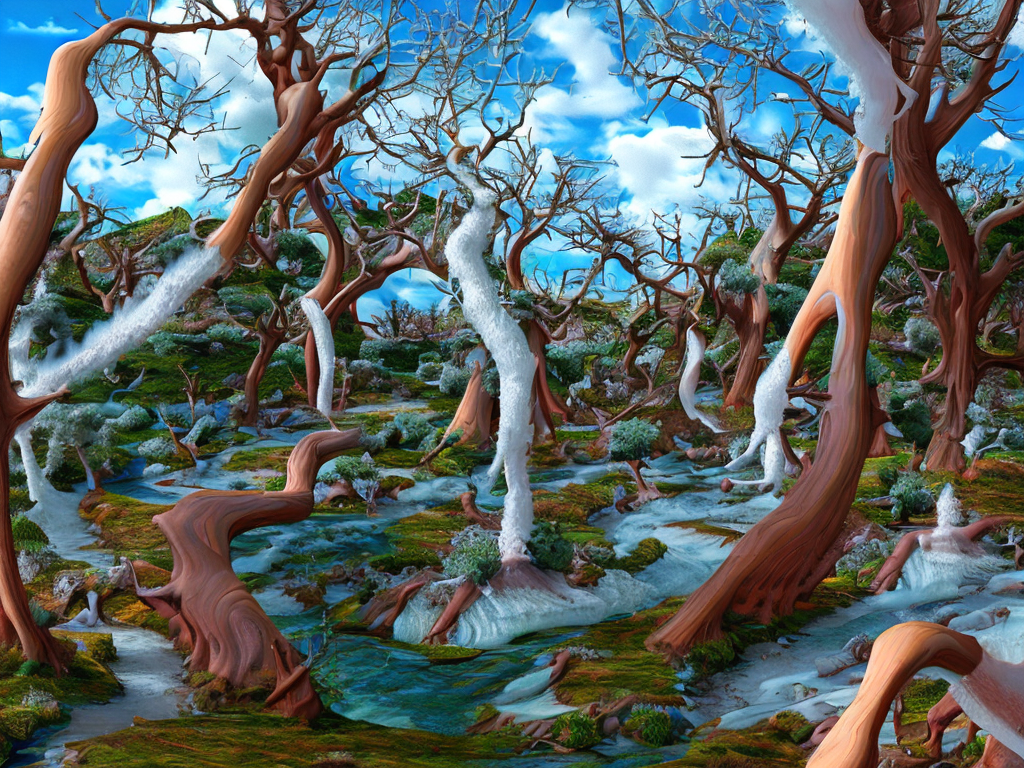
SmoothNoob_Quality, masterpiece, best quality, amazing quality, newest, very aesthetic, absurdres, (scenery:1.4), 8k, good anatomy, good shading, ultra detailed, refined details, high resolution, HD, masterwork, CRYOS2, Y0ney4m4_illu,digital art, surreal, dynamic composition. high resolution, sharp focus, 1girl, black hair, hair bun, grey eyes, bare shoulders, hand on own face, lips, off shoulder, blush, earrings, mask, japanese clothes, fingernails, kimono, sleeveless, sitting, looking at viewer, head rest, sword, katana, sheath, solo, holding, brown background, upper body, tattoo, oni mask, weapon, jewelry, arm tattoo, shoulder tattoo, nail polish, red nails, sheathed, closed mouth, holding mask, unworn mask, black nails, hand tattoo, motion blur, (dutch angle:1.1), (depth of field:1.3).
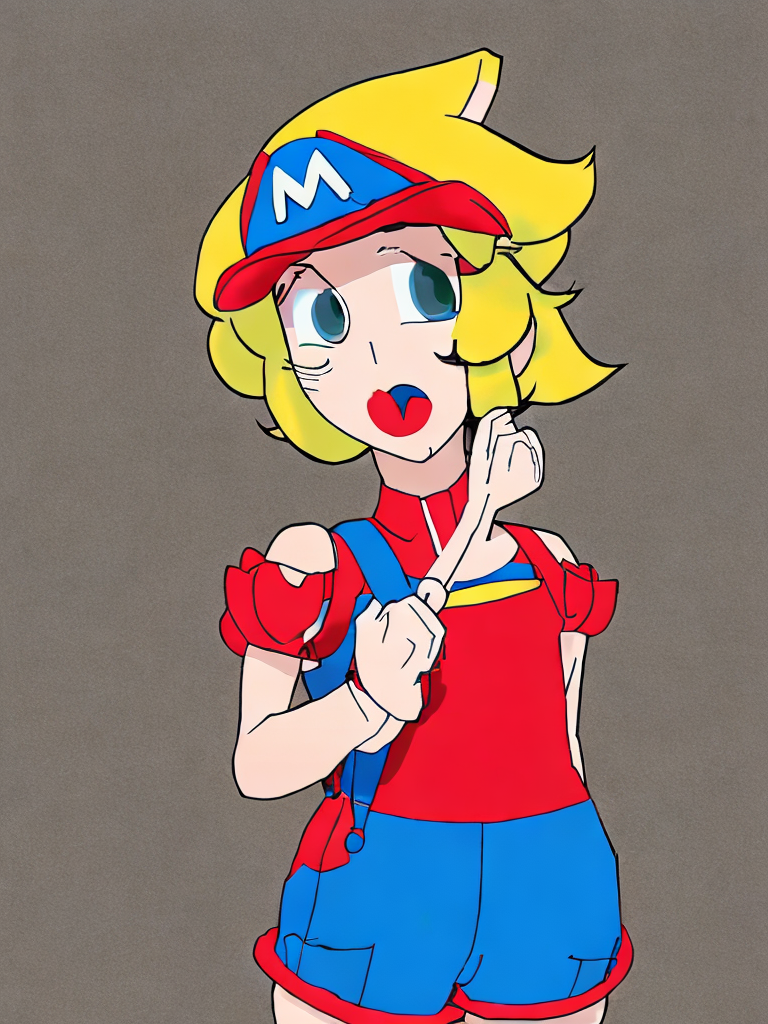
This is a playful, anime-style digital artwork of Princess Peach wearing Mario’s classic outfit, putting on a fake mustache to impersonate him. She wears a bright red cap with the iconic “M” logo, a snug red shirt, and a blue denim jumpsuit with straps and buttons, emphasizing her bust and curves in tasteful anime style. Her long blonde hair flows from beneath the cap in soft, shiny anime highlights, framing her playful, mischievous face. Peach holds a small, comical fake mustache to her upper lip, her expression a mix of amusement and slight embarrassment, with a mischievous sparkle in her large, expressive anime eyes. Her posture is playful, leaning slightly forward as she adjusts the mustache, with her hands and fingers delicately detailed. The background is colorful and cartoonish, evoking the cheerful Super Mario world, with floating blocks, coins, and soft motion lines emphasizing her playful movement. Warm, soft lighting highlights her hair, outfit, and facial expression, giving the scene a lively, charming anime vibe.

This is a playful, anime-style digital artwork of Princess Peach wearing Mario’s classic outfit, putting on a fake mustache to impersonate him. She wears a bright red cap with the iconic “M” logo, a snug red shirt, and a blue denim jumpsuit with straps and buttons, emphasizing her bust and curves in tasteful anime style. Her long blonde hair flows from beneath the cap in soft, shiny anime highlights, framing her playful, mischievous face. Peach holds a small, comical fake mustache to her upper lip, her expression a mix of amusement and slight embarrassment, with a mischievous sparkle in her large, expressive anime eyes. Her posture is playful, leaning slightly forward as she adjusts the mustache, with her hands and fingers delicately detailed. The background is colorful and cartoonish, evoking the cheerful Super Mario world, with floating blocks, coins, and soft motion lines emphasizing her playful movement. Warm, soft lighting highlights her hair, outfit, and facial expression, giving the scene a lively, charming anime vibe.

AI creation tutorial in 4 simple steps for batch image editing, bulk AI generation, and multi-modal content. Step 1: choose a bulk workflow; Step 2: craft prompts with keyword guidance; Step 3: run the batch image editor, AI upscaler, or video generator; Step 4: download and share. Covers text-to-image, text-to-video, audio guides, and best practices—no experience required.

AI Creation Tutorial — 4 Steps to Master AI Content Generation

Create faster with AI. Every workflow — background removal, upscaling, editing — is step-by-step, simple, and ready for beginners.

The entire flow is streamlined: pick what you want to do, describe it, and the AI handles the rest. No editing skills needed, just consistent and clean results for all your images and media.

Fast Generation (≈30s)
No AI Experience Required
High-Quality, Consistent Output

Step 1Choose an AI Filter

Browse our library of AI-powered filters and styles — from cartoon effects and 3D renders to vintage aesthetics and artistic portraits.
Select AI Creation Tool, Choose Feature, Batch Image Editor, Bulk Workflow1
AI Creation Step 1
Easy to Learn

Step 2Upload Your Photo

Upload the photo you want to enhance or transform. Multiple formats are supported, and high-resolution images deliver the best results.
Write Prompt, Add Style & Constraints, Background Removal, Color Control2
AI Creation Step 2
Easy to Learn

Step 3AI Processing

Our advanced AI algorithms analyze your photo and apply the selected filter or effect. Processing usually takes just a few seconds.
AI Generation, Multi-Step Editing, Upscaling, Brand Style Unification3
AI Creation Step 3
Easy to Learn

Step 4Download & Share

Download your AI-enhanced photo instantly and share it on social media, use it in your projects, or keep it for personal collections.
Download Result, Share to Social, Watermark Options, Campaign Delivery4
AI Creation Step 4
Easy to Learn

Start Your AI Creation Journey — Fast, and Built for Bulk Editing

Experience cutting-edge AI automation. Turn ideas into visuals, videos, and audio with batch background removal, smart erase, and AI image upscaling.
In just a few steps, generate stunning AI images, cinematic clips, and studio-grade audio ready for e-commerce, social media, or marketing launches.

Zero-Setup, Beginner-Friendly
≈30-Second Turnaround
Pro-Level Output Quality

AI Creation Tips — Boost Your Generation Quality

Be specific: include subject, style, camera angle, lighting, resolution, and constraints to guide the model.
Keyword tuning: add art style, mood, color palette, lens (e.g., 35mm), composition (rule of thirds), and timeframe.
Iterate: try multiple generations and refine prompts; use multi-step edits to lock character identity and brand tone.
Adjust parameters: scale guidance, seed, and safety settings; enable watermarks for authenticity and rights management.
AI creation FAQ, AI content generation help center, AI tool usage guide, AI image generation FAQ, AI video production FAQ, AI audio creation FAQ, AI music generation guide, AI copyright and legal issues, AI generation cost, AI content quality optimization, AI tool troubleshooting, AI creation tutorials, free AI creation platform Q&A, technical support for AI content tools.

AI Creation FAQ - Help Center

What are AI photo filters?

AI photo filters use advanced artificial intelligence algorithms to instantly transform your photos into different artistic styles such as cartoons, 3D renders, vintage effects, portraits, and more. Simply upload your photo, and the AI will automatically generate stunning, high-quality results.

How do I use AI photo editing tools?

Using our AI photo editing tools is simple: 1) Select your preferred filter or style, 2) Upload your photo, 3) Wait a few seconds for AI processing, 4) Download your enhanced image. The entire process is automated and beginner-friendly.

Which image formats are supported?

We support popular image formats including JPG, PNG, and WEBP. For the best results, we recommend uploading high-resolution images.

How long does AI photo processing take?

Most AI processing is completed within 10–30 seconds, depending on image size and the complexity of the chosen effect.

Can I use AI-generated images for commercial purposes?

Yes, you may use AI-generated images commercially. Please ensure you own the rights to the original photo you upload before generating content.